
The SkinsCollection editor lets you paint a Minecraft skin directly on a rotating 3D model – no pixel grid guesswork. This guide walks through the whole interface and explains each tool in detail. Open the editor in another tab and follow along.
Getting started
When you open the editor you start from a default Steve skin. A few choices set up your canvas:
- Model – Steve or Alex. Steve has classic 4-pixel-wide arms; Alex is slimmer with 3-pixel arms. Pick the one that matches the character you want.
- Import. Click Import to load an existing
.pngskin and edit it. Classic 64×32, modern 64×64 and HD 128×128 skins are all detected automatically. - Canvas size – 64×64 or HD 128×128. Standard skins are 64×64. Switch to HD for four times the detail; the whole project (and every layer) is resampled to the new resolution.
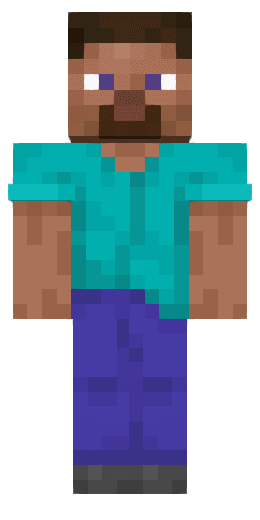 Steve – classic
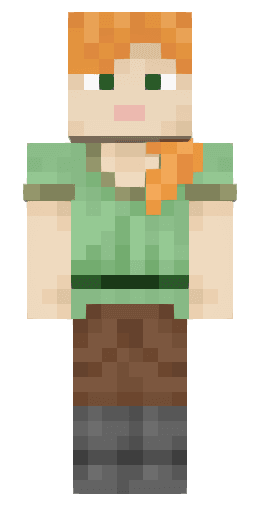 Alex – slim
The interface
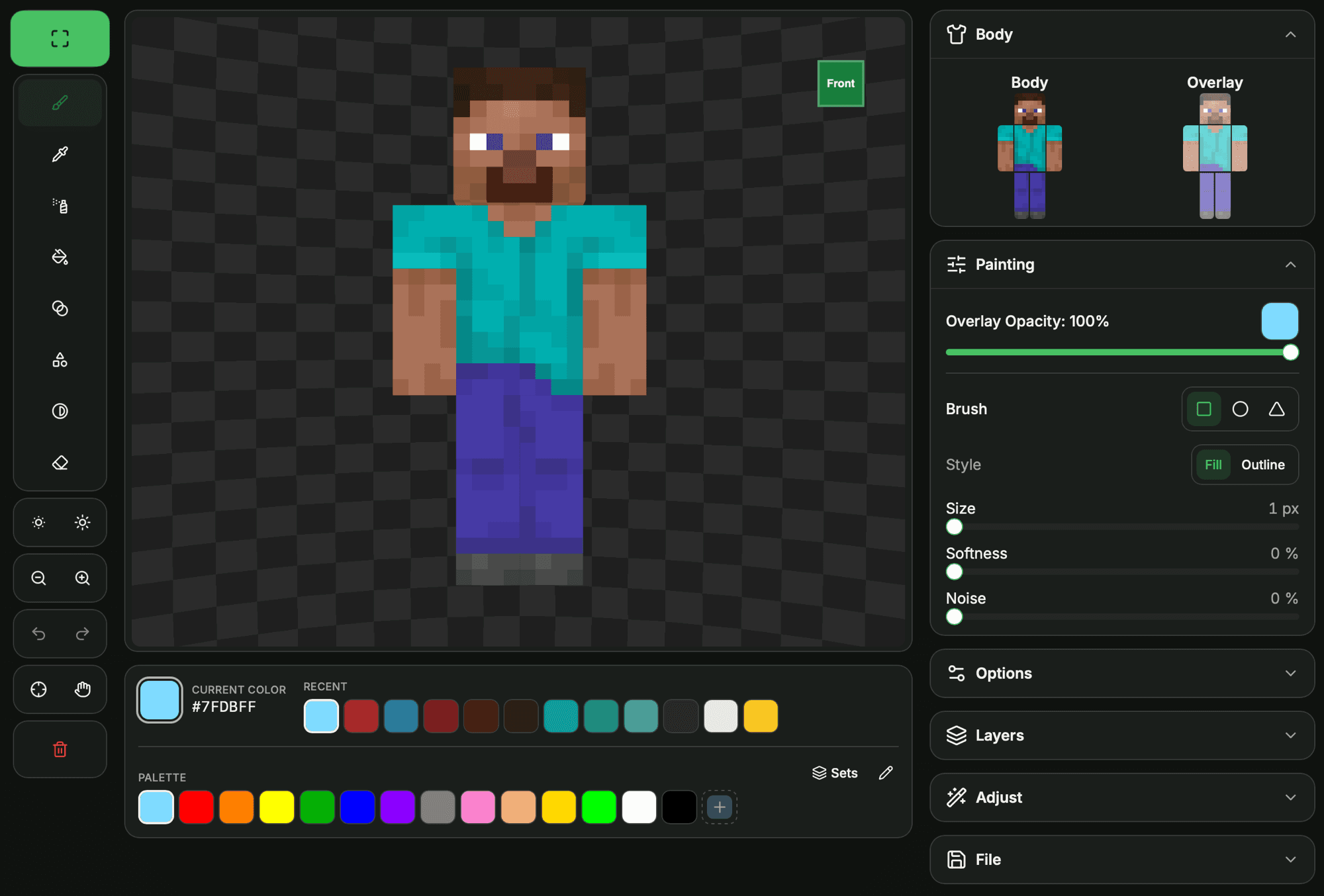
The editor is built around the 3D model in the centre, with everything else in panels around it:
- Toolbar – the painting tools (Brush, Eyedropper, Spray, Fill, Gradient, Shape, Dodge/Burn, Eraser).
- Tool settings – options for the active tool (size, shape, strength, and so on) appear right under the toolbar.
- Colors – the palette and colour picker.
- Layers, Body, Options – stacked panels for layer management, part visibility, model, pose and canvas size.
- View controls – move, zoom, default view, undo/redo and reset.
On large screens you can go fullscreen and drag the panels anywhere; Reset layout snaps them back. Turn on the pixel grid for precise, texel-accurate work.
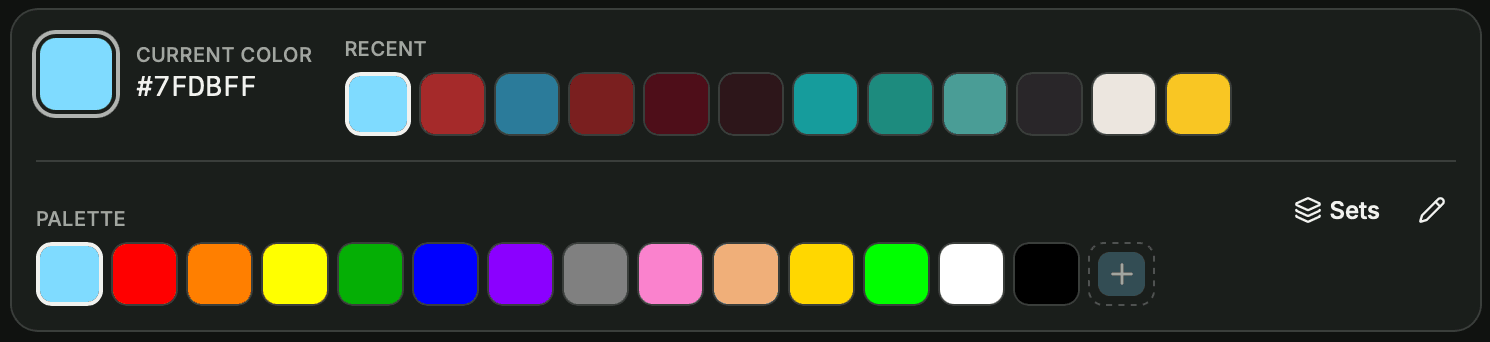
Colors & palette
The Colors panel holds your current colour and the palette:
- Current color– the swatch you're painting with. Click it to open the colour-wheel picker; type a hex value directly, or hit Set Background Color to recolour the scene behind the model.
- Recent – your last colours (up to 12), tracked automatically.
- Palette – preset swatches. Add the current colour with +, or use the pencil to recolour and delete swatches.
- Sets– load a curated palette (Default, Skin tones, Grayscale, Earth & nature, Vibrant, Overworld, Ores & gems, Nether, Hair & eyes). Handy for restoring the defaults or theming a build.
Two quick buttons next to the tools shade your current colour without opening the picker: Darker and Lighter . They're ideal for building a set of matching tones for shading.
Tools
Select a tool from the toolbar, then tune it in the settings below. A continuous stroke is one undo step, so you can paint freely and undo the whole thing at once.
Brush
The everyday painting tool. Choose a colour and paint on the model. Double-click to fill the whole face.
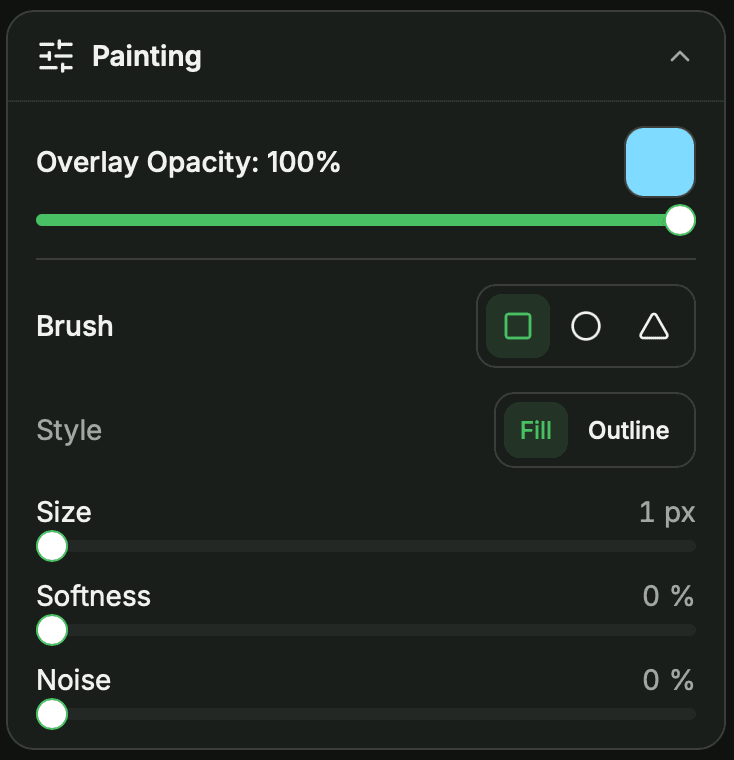
- Shape – Square, Circle or Triangle.
- Style – Fill paints a solid shape; Outline paints only its edge.
- Size– brush width, 1–10 px. A sized cursor shows the exact area you'll paint.
- Softness – 0–100%; higher values fade the brush edge into the surroundings.
- Noise– 0–100%; randomises each pixel's colour for a textured look.
Spray
Scatters slightly varied shades of your colour for texture and gradients. Each pixel is sprayed once per stroke, so hold and drag to build it up. Double-click fills the face.
- Size – the square spray area, 1–10 px (default 1 = a single pixel), shown by the cursor.
- Spread – how widely the colour is jittered.
Fill
Floods an area with the current colour.
- Scope – Face fills the connected area you click; Whole skin recolours every pixel of that colour across the entire texture, in one step.
- Tolerance – how close a neighbouring colour must be to be included (0 = exact match).
- Contiguous – when on, only the connected region fills; off fills all matching pixels on the face.
Gradient
Drag out an area on a face and it fills with a smooth gradient between colours.
- Type – Radial, Horizontal, Vertical or Diagonal.
- Middle colour – add an optional third stop for a multi-colour blend.
Shape
Drag to draw a geometric shape on a face.
- Kind – Line, Rectangle, Ellipse, Triangle, Diamond or Polygon.
- Outline – draw just the border instead of a filled shape.
- Sides – number of sides for the polygon.
Dodge / Burn
Lightens or darkens existing pixels instead of replacing them – perfect for shading and highlights without picking new colours. (This replaces the old brightness buttons.)
- Mode – Lighten (dodge) or Darken (burn).
- Size – the affected area, 1–10 px.
- Strength – how much each pass shifts the brightness.
Eraser
Clears pixels to transparent. Double-click to clear the whole face.
- Size – the erased area, 1–10 px, shown by the cursor.
Eyedropper
Click any pixel on the model to set it as your current colour – the quickest way to reuse a shade you mixed.
Symmetric painting
Turn on Mirror to paint both sides at once: every stroke is mirrored onto the symmetric texel (the opposite arm or leg, or the other half of the head and body). Great for keeping a character's left and right in sync.
Overlay & opacity
Minecraft skins have two layers per body part: the solid base and an overlay on top (hat, jacket, sleeves, trousers). The overlay supports real transparency, so use Overlay Opacity to paint semi-transparent details – glasses, shadows, loose clothing – that let the base show through.
Body parts & the interior
The Body panel lets you toggle individual parts and layers on or off . Hiding a part reveals the surfaces behind it, so you can reach the inside of the head or the body under the arms. Click the Base or Overlay heading to toggle a whole group at once. Remember to paint these interior faces for a complete look from every angle.
Layers
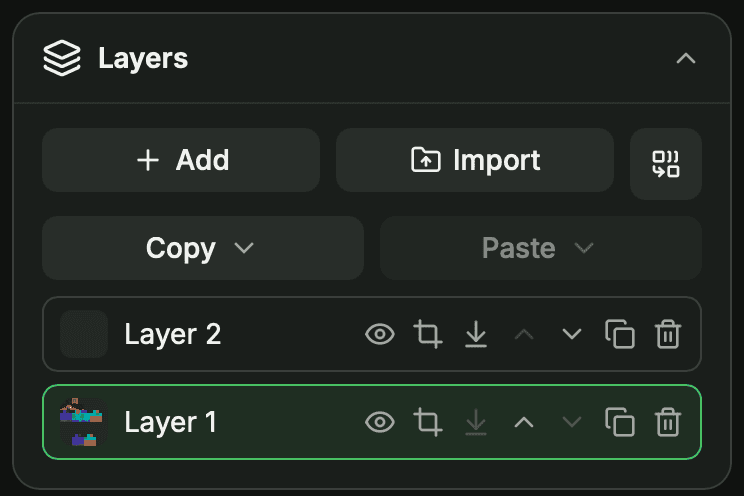
The Layers panel lets you build a skin from multiple stacked images (up to 15), much like an image editor:
- Add, duplicate, delete and reorderlayers; toggle each layer's visibility and rename it.
- Active layer – your tools paint the selected layer; the model shows the composite of all visible layers.
- Part mask – restrict a layer to Head, Body, Arms or Legs so it only shows on those parts (no mask = the whole layer contributes).
- Copy / Paste parts – copy a region (e.g. the head, base or overlay) and paste it onto another part or another layer.
- Merge down and Flattencombine layers into one when you're done.
Importing a skin (from the File panel or a skin's detail page) adds it as a new layer and hides the others, so you never overwrite work in progress.
Adjustments
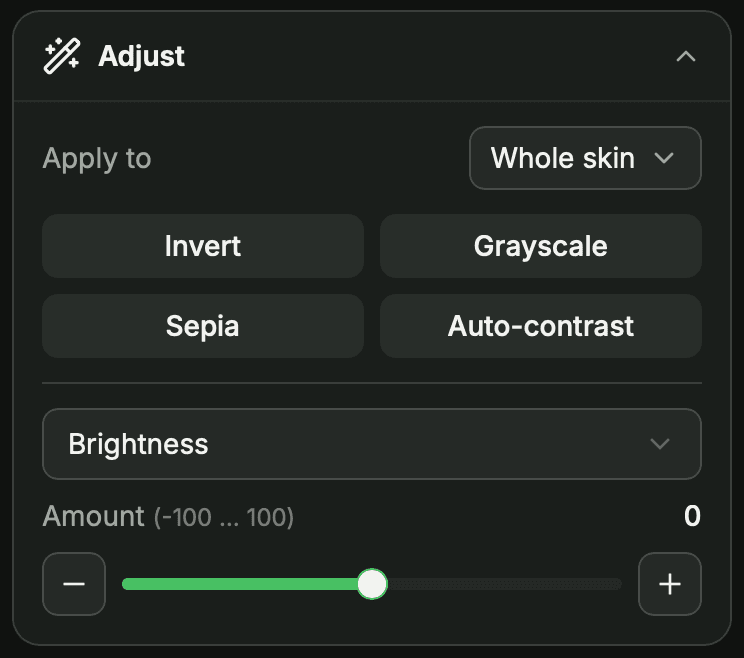
The Adjust panel applies image-wide colour corrections in a single undoable step:
- One-tap presets – Invert, Grayscale, Sepia and Auto-contrast.
- Slider adjustments – pick one (Brightness, Contrast, Saturation, Hue, Temperature, Opacity, Posterize or Colorize) and drag the Amount (−100…100), or nudge it with the − / + buttons.
- Apply to – scope the change to the whole skin, specific body parts, or a layer; hidden parts can be excluded.
Transform & flip
The Flip menu reorients or restructures the texture in one undoable step:
- Turn around – swap front and back.
- Mirror left / right – flip the whole skin horizontally.
- Swap body / overlay – exchange the base and overlay layers.
- Flatten overlay onto body – bake the overlay down into the base.
View & poses
Rotate and frame the model to reach every surface:
- Move – drag to rotate the model (or just drag the background).
- Zoom in / out and Default view to reset the camera.
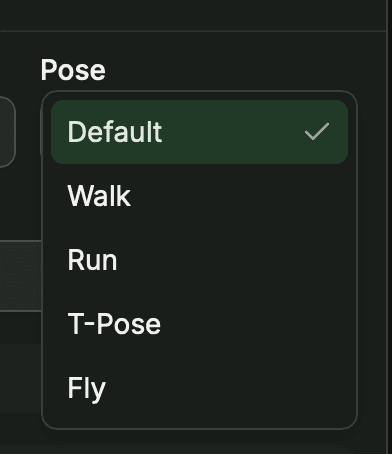
- Pose – preview your skin in Default, Walk, Run, T-Pose or Fly to see how it reads in motion.
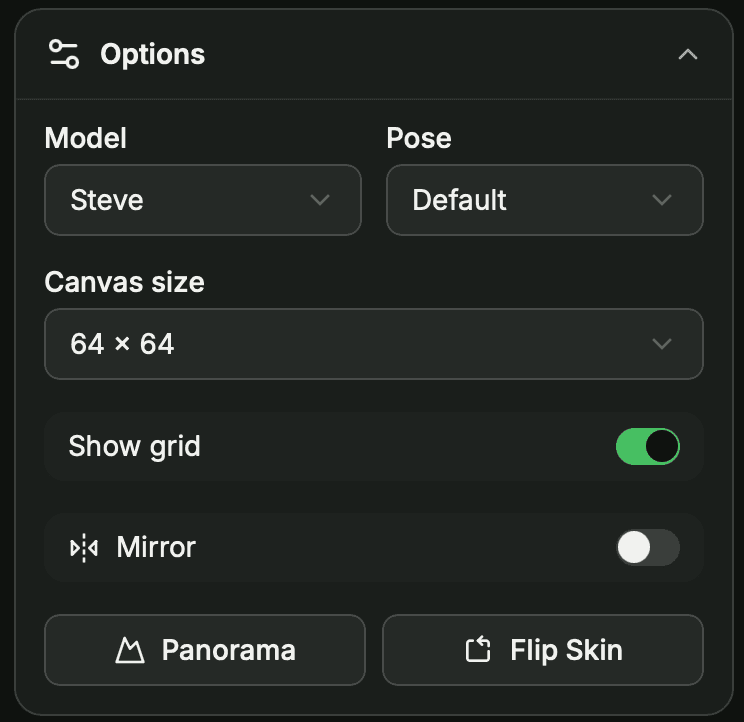
Model, Pose, Canvas size, Show grid, Mirror, Panorama background and Flip Skin all live in the Options panel.
Undo, redo & reset
Made a mistake? Undo and Redo step through your history – and each brush stroke counts as a single step. To start completely fresh, Reset returns to a clean default skin.
Save & download
When your skin is ready, Download saves the .png to your device. To share it with the community, sign in and click Save – add a title, description and tags, then upload it to SkinsCollection.
Install your skin in Minecraft
Once you've downloaded the skin, apply it in-game:
Java Edition
- Go to minecraft.net, sign in, and open Profile → Skins(or use the launcher's Skins tab).
- Choose your model variant (Classic for Steve, Slim for Alex), upload the downloaded
.png, and save. - The skin applies the next time you launch the game.
Bedrock Edition
- Open Minecraft, tap the coat-hanger / Dressing Room icon on the main menu, then Classic Skins → Owned → Import.
- Select the downloaded
.png, pick the matching body type, and confirm.